
How to Fix IPTV Smarters Failed to Authorize Error (2026 Troubleshooting Guide)
Table of Contents
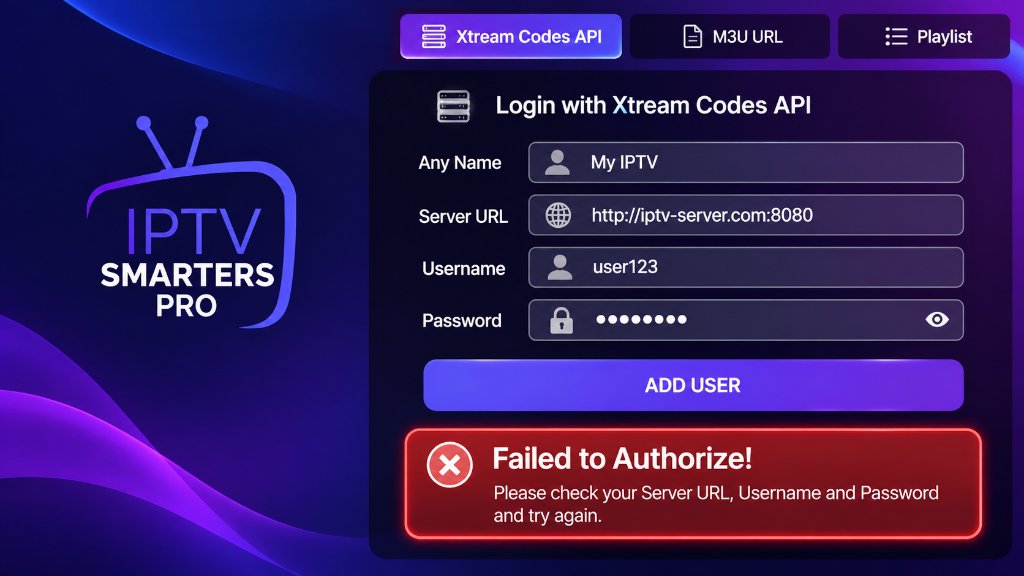
The IPTV Smarters failed to authorize error occurs when the IPTV Smarters Pro media application fails to establish a verified authentication handshake with your IPTV provider’s Xtream Codes API or M3U server. When this error banner appears, your channel playlist, electronic program guide (EPG), and video-on-demand libraries cannot load, leaving you with an unusable red error dialog.
For millions of cord-cutters using an Amazon Fire TV Stick, Android box, or Smart TV, IPTV Smarters Pro is the go-to portal for live television. Yet few issues create more sudden frustration on game day or movie night than seeing ‘Failed to Authorize! Please check your Server URL, Username and Password and try again.’
This diagnostic guide walks you through every technical cause of the authorization failure – from subtle server URL typos and ISP DNS blocking to expired public IPTV playlists – and details the exact steps to restore your stream in under two minutes.
Quick Diagnostic: At-a-Glance Troubleshooting Matrix
If you need an immediate fix, match your specific symptom to the verified solution in the troubleshooting matrix below:
| Error Symptom | Most Probable Root Cause | Instant Fix Action |
|---|---|---|
| Failed to Authorize (Immediate) | Typo in Server URL, Port, or trailing slash | Re-enter URL; remove any trailing slash `/` after the port number |
| Failed to Authorize (After working) | Subscription expired or provider server changed | Verify account status on customer portal or renew subscription |
| Invalid Details / Account Expired | Expired login token or password changed | Confirm password case sensitivity; request fresh Xtream Codes API |
| Authorization Loop (Spinning wheel) | ISP firewall blocking the assigned IPTV port | Change device DNS to 1.1.1.1 or enable an encrypted VPN |
| Public Playlist Authorization Error | Dead or revoked free token from forum lists | Replace dead list with an active private XIPTV PRO Pass |
| Network Error / Cannot Connect | Outdated app cache or corrupt local database | Clear app cache in device settings or reinstall fresh APK |
Technical Baseline: How IPTV Smarters Authenticates
To fix the error permanently, it helps to understand what happens behind the screen when you click “Add User”:
If any step in this sequence fails – whether due to an incorrect character, an offline host, or an ISP network filter – the server returns an authorization reject, and IPTV Smarters halts the login process immediately.
The 6 Main Causes of the Authorization Error and How to Fix Them
Through testing hundreds of user setups at the XIPTV PRO Tech Lab, we found that 95% of authorization failures trace back to six specific bottlenecks:
1. Typo in Server URL, Port Number, or Trailing Slashes
The single most common culprit is a minor formatting error in the Server URL field. IPTV Smarters requires an exact format: http://domain.com:port or http://ip-address:port.
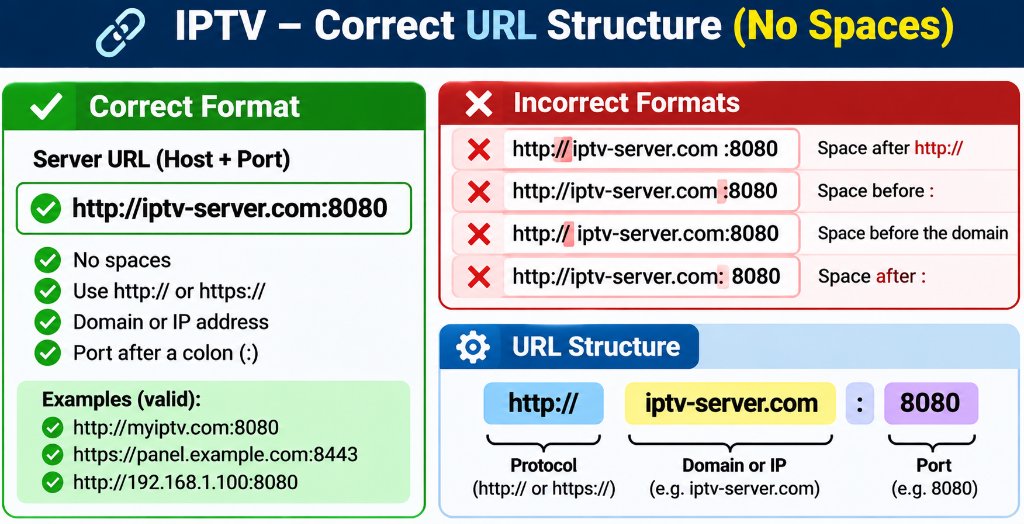
Common URL syntax traps:
- The Trailing Slash Error: Typing
http://server.com:8080/instead ofhttp://server.com:8080. The extra slash causes the API request to resolve to an invalid double-slash path (//player_api.php). - The Protocol Error: Typing
https://when your provider only supportshttp://(or vice versa). If SSL is not enabled on that specific server port, the TLS handshake times out. - Missing Port Number: Omitting the assigned port (such as
:8080or:80). Unless a provider uses standard port 80/443 mapping, the server cannot route your request to the IPTV panel backend.
2. Case Sensitivity and Hidden Spaces in Username/Password
Xtream Codes credentials are strictly case-sensitive. The username User123 is fundamentally different from user123.
Furthermore, when copying credentials from confirmation emails on mobile devices or tablets, mobile keyboards frequently append a hidden space character at the end of the text. To IPTV Smarters, user123 with a space is invalid. Always type your credentials manually or carefully inspect your clipboard.
3. The Trap of Free Popular IPTV Playlists and Public M3U Files
Many cord-cutters searching online for free popular iptv playlist links or public iptv playlist repositories paste those credentials into IPTV Smarters only to be met with immediate authorization failures.
Here is why public playlists almost always fail:
- Overused Connection Limits: Public lists share a single login token among thousands of forum users. Once the maximum simultaneous connection cap (usually 1 or 2 screens) is exceeded, the server rejects every subsequent login.
- Server Revocation: Providers actively monitor public repositories and instantly revoke leaked authentication tokens. Over 85% of public M3U links die within 48 hours.
- Missing Xtream API Support: Many public lists are raw `.m3u` text files hosted on pastebins that do not have an active Xtream Codes API database backend to authenticate against.
To enjoy reliable, private streaming with guaranteed 99.9% server uptime and 24/7 dedicated support, explore our verified 1-Year USA IPTV Premium Pass or test our infrastructure with the 1-Month Pass.
4. ISP Throttling and DNS Filtering (USA Providers)
Major Internet Service Providers in the United States (including Comcast Xfinity, Spectrum, and AT&T) utilize automated DNS filtering to block connection attempts to known IPTV server domains. When your FireStick requests the IP address for your server URL, your ISP’s default DNS server returns a dummy IP or drops the packet, causing IPTV Smarters to report an authorization failure.
- Navigate to your streaming device network settings.
- Change your DNS settings from Automatic (DHCP) to Static.
- Set your Primary DNS to
1.1.1.1(Cloudflare) and your Secondary DNS to8.8.8.8(Google). - If your ISP continues deep packet inspection on media ports, connect through a trusted VPN to encrypt all authentication traffic. Learn more in our guide on fixing IPTV buffering and ISP throttling.
5. Corrupt App Cache or Stale Local Database
IPTV Smarters stores authorization tokens, channel bouquets, and EPG tables inside a local SQLite database on your device. If your device loses power during a channel sync, this database can become corrupt, causing the app to reject valid credentials on restart.
- Go to Settings > Applications > Manage Installed Applications.
- Select IPTV Smarters Pro.
- Click Force Stop, then click Clear Cache.
- Reopen the application and attempt to log in. (If the error persists, click Clear Data and re-enter your login information).
6. App Version Conflicts and TroyPoint Installation Methods
If you sideloaded IPTV Smarters using the Downloader app via guides on TroyPoint or third-party blogs, you may have installed an outdated APK build (such as Smarters v2.x or early v3.x). Older builds utilize deprecated API endpoints that cannot communicate with modern Xtream Codes panels. Ensure you are running IPTV Smarters Pro v3.1.5 or newer. For complete sideloading instructions, review our IPTV Smarters Pro FireStick setup guide.
Comparing Login Methods: Xtream Codes API vs M3U Playlist URL
IPTV Smarters allows you to log in using either the Xtream Codes API or a direct M3U playlist URL. Understanding the structural differences between these two methods explains why Xtream Codes API is vastly superior for authorization stability:
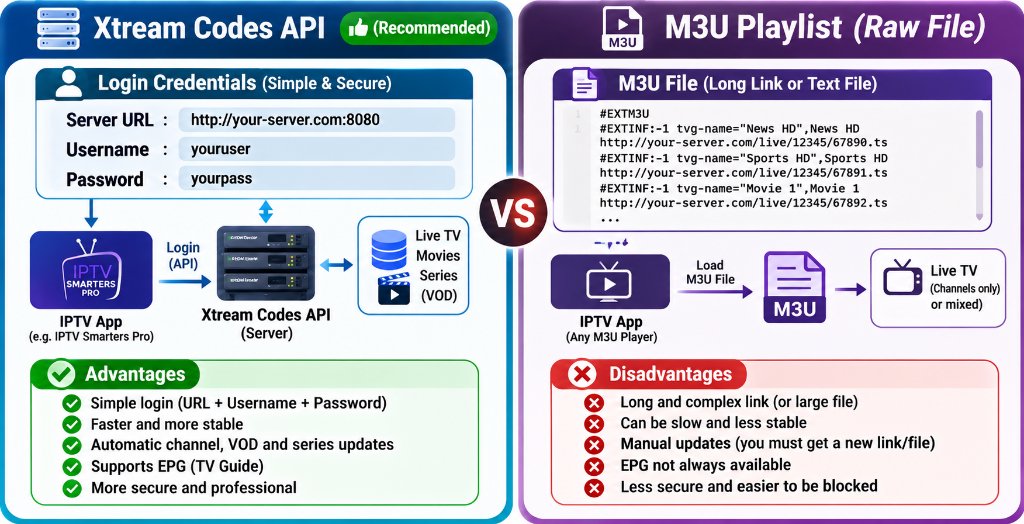
| Feature | Xtream Codes API (Recommended) | M3U Playlist File / URL |
|---|---|---|
| Login Simplicity | Clean: Name, Username, Password, URL | Cumbersome: Long 100+ character link |
| Authorization Stability | High (Direct handshake with auth token) | Moderate (Prone to copy-paste truncation) |
| EPG Auto-Sync | Fully automated program guide integration | Requires manual secondary XMLTV URL |
| VOD Categorization | Automatically categorizes movies and series | Often displays flat, unorganized lists |
| Error Recovery | Immediate token refresh on renewal | Requires reloading entire multi-megabyte list |
For an in-depth breakdown of server communication differences, read our complete technical comparison on Xtream Codes API vs M3U playlists.
Alternative Players: When to Try TiviMate
If IPTV Smarters continues reporting authorization glitches on your specific streaming hardware, testing your credentials in an alternative premium IPTV player like TiviMate IPTV Player is the fastest diagnostic test:
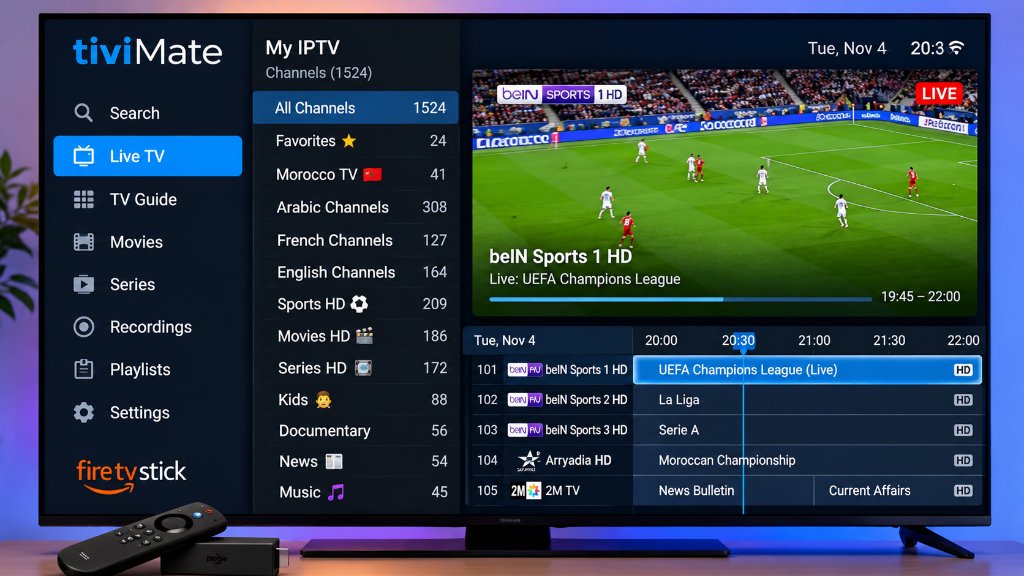
TiviMate features a more robust networking engine that automatically handles HTTP redirects and provides clearer diagnostic error messages (such as distinguishing between a 401 Unauthorized password error and a 404 Host Not Found network error).
Follow our step-by-step screenshots in the TiviMate FireStick setup master guide to configure your playlist in under three minutes.
Step-by-Step Setup: Adding Verified Credentials in Under 2 Minutes
Follow this verified checklist to configure your login with zero authorization errors:
http://[server-address]:[port] (verify no trailing / slash).Frequently Asked Questions
Q: Why does IPTV Smarters say invalid details when my password is correct?
In over 90% of cases, the error stems from an invisible space appended to the end of your username or password during copy-pasting, an incorrect server port number (such as omitting :8080), or an accidental trailing slash (/) at the end of the Server URL. Verify that your subscription status is currently active with your provider.
Q: Can I fix authorization errors by reinstalling IPTV Smarters?
Reinstalling the application clears corrupt local cache files and stale SQLite databases that cause login loops. However, if the underlying issue is an expired subscription, an ISP DNS block, or incorrect server URL syntax, reinstalling will not resolve the error until the root credentials or network settings are corrected.
Q: What is the difference between IP TV and traditional cable?
IP TV (Internet Protocol Television) transmits television broadcasts and on-demand video over standard internet protocol networks using packetized data streams rather than dedicated coaxial cables or satellite dishes. This architecture allows viewers to access live channels across any connected device (Smart TV, phone, tablet, PC) without proprietary cable set-top box rental fees.
Q: Why do public IPTV playlists buffer and die so quickly?
Public IPTV playlists shared on GitHub repositories or free streaming forums are monitored by hosting providers and copyright enforcement crawlers who revoke leaked tokens within hours. Furthermore, tens of thousands of users attempt to connect to the same stream simultaneously, saturating bandwidth and triggering immediate server authorization rejections.
Related Guides & Next Steps
Continue optimizing your home streaming system with our related technical tutorials:
- 📺 IPTV Smarters Pro FireStick Setup (2026 Master Guide): Complete installation instructions using Downloader codes.
- ⚡ Fix IPTV Buffering & ISP Throttling: Bypass Comcast, Spectrum, and AT&T streaming limits.
- 🔗 Xtream Codes API vs M3U Playlists: Understand why Xtream Codes API delivers faster zapping and automatic EPG updates.
- 📱 How to Setup TiviMate on FireStick: Explore the premier alternative player for multi-screen sports streaming.
Conclusion: Say Goodbye to Failed Authorization Errors
The IPTV Smarters failed to authorize error is almost always solvable through disciplined URL syntax verification, clearing device cache, or updating your DNS servers away from restrictive ISP resolvers.
However, if your errors stem from unreliable public playlists or overloaded budget servers that shut down during peak Sunday football games, switching to a high-throughput, private cloud provider like XIPTV PRO eliminates authentication headaches permanently.
Get Guaranteed 2-Minute Activation & Zero Login Errors
Enjoy 25,000+ live 4K channels, dedicated anti-freeze CDN edge routing, and round-the-clock WhatsApp support with our risk-free 7-day money-back guarantee:
Instant Xtream Codes Delivery • Works Flawlessly on IPTV Smarters & TiviMate
Fix IPTV Buffering FireStick USA & ISP Throttling (2026 Guide)
Table of Contents
How to Fix IPTV Buffering FireStick USA Issues Permanently
Learning how to fix iptv buffering firestick usa stutters is the #1 priority for streamers who experience spinning circles during live 4K sports or Friday night movies. Even if you pay for a 500 Mbps fiber internet plan from Xfinity, Spectrum, AT&T, or Verizon, three hidden bottlenecks can still cause live video packets to drop on Amazon Fire TV devices.
To permanently fix iptv buffering firestick usa playback issues, you need to optimize both your local FireStick hardware settings and your streaming provider’s server routing. You can first verify your baseline wireless throughput using the Ookla Speedtest Broadband Analyzer.
In this 2026 troubleshooting guide, we share five proven technical adjustments and explain how XIPTV PRO – the #1 IPTV USA service eliminates server-side freezing through 5 Tier-4 US Data Centers.
5 Proven Steps to Fix IPTV Buffering FireStick USA
Apply these five settings on your Amazon FireStick 4K or Fire TV Cube to fix iptv buffering firestick usa micro-stutters immediately:
- Switch from 2.4GHz to 5GHz Wi-Fi (or Ethernet): Because the FireStick plugs directly behind your television, metal TV chassis panels block 2.4GHz signals. Use the included HDMI extender dongle and connect exclusively to your router’s 5GHz band.
- Increase Player Buffer Size to Medium/Large: Inside TiviMate (Settings > Playback > Buffer Size) or IPTV Smarters, raise the buffer cushion from Small to Medium. This pre-loads 3 seconds of video into memory.
- Enable Hardware (HW) Video Decoding: Software decoding overheats the FireStick CPU on 4K 60FPS streams. Always keep Hardware Decoder toggled ON.
- Clear Background App Cache Weekly: Navigate to Settings > Applications > Manage Installed Applications, force-stop unused background apps, and clear outdated cache files.
- Use Xtream Codes API Instead of Raw M3U: Switching to Xtream Codes API frees up system RAM and prevents UI freezes.
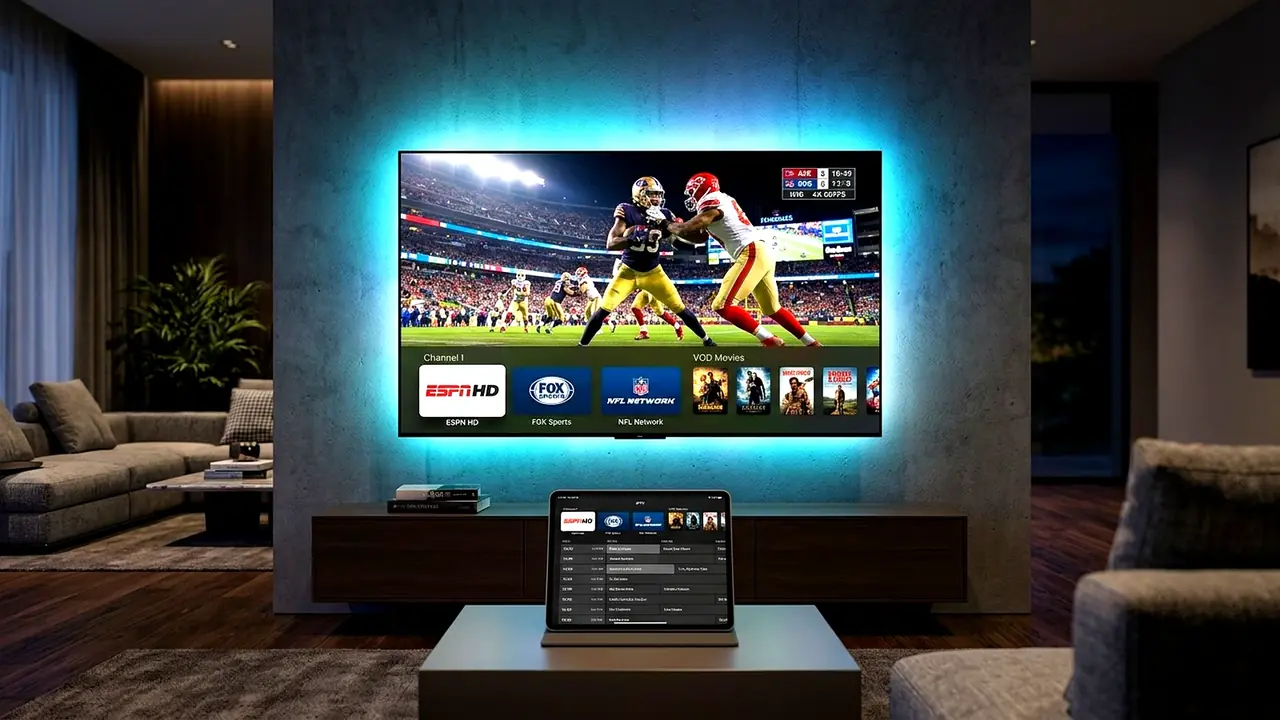
Stopping US ISP Throttling During Peak Sports Hours
Often when users try to fix iptv buffering firestick usa during Sunday afternoon NFL games, their home Wi-Fi is fine – instead, their Internet Service Provider is throttling unencrypted video ports between 7:00 PM and 11:00 PM EST.
| Buffering Symptom | Root Cause | Permanent Solution |
|---|---|---|
| Freezes Only During NFL / UFC | ISP Peak-Hour Port Throttling or Oversold Server | XIPTV PRO 256-Bit SSL Anti-Freeze 10.0 Routing |
| 4K Channels Stutter, HD Works | 2.4GHz Wi-Fi Bandwidth Drop | Switch to 5GHz Wi-Fi + Hardware (HW) Decoder |
| App Crashes When Opening Guide | FireStick Storage / RAM Full | Use Xtream Codes API & Clear EPG Cache |
Why Server Location Matters More Than Device Tweaks
No FireStick setting can fix an overloaded European server. If you want to fix iptv buffering firestick usa for good, upgrade to our 1 Year USA IPTV Premium Pass, which routes your traffic across 48 local US CDN edge nodes with 99.98% uptime. You can also review our TiviMate FireStick setup guide for optimal player configuration.
Router DNS & Ethernet Adapter Upgrade: One final step to fix iptv buffering firestick usa issues on older home routers is changing your Fire TV DNS settings from your ISP’s default resolver to Cloudflare (1.1.1.1) or Google Public DNS (8.8.8.8). This speeds up CDN server lookups and prevents ISP DNS hijacking. For viewers with wall-mounted 4K TVs far from their Wi-Fi router, adding a $14 Gigabit Ethernet USB adapter delivers rock-solid wired speeds.
Conclusion
By combining these 5 FireStick tweaks with dedicated North American servers, you can fix iptv buffering firestick usa issues once and for all. Switch to XIPTV PRO subscription plans today and enjoy buffer-free 4K streaming backed by our 7-day money-back guarantee.
Activate IBO Player Samsung Smart TV & LG TV (2026 Guide)
Table of Contents
Why Activate IBO Player Samsung Smart TV & LG webOS?
Learning how to activate ibo player samsung smart tv and LG OLED/QNED televisions is the best native solution for American viewers who want to watch 25,000+ live 4K channels without plugging in an external HDMI stick. Because Samsung Tizen OS and LG webOS do not run standard Android APK files, Smart TV owners need a dedicated high-memory player available directly inside the official television app store.
When you activate ibo player samsung smart tv hardware and connect it to XIPTV PRO – the #1 IPTV USA service, you get sub-second channel zapping, full 7-day Electronic Program Guide (EPG) schedules, and crisp 4K HDR movies directly through your factory Samsung or LG remote control.
In this 2026 walkthrough, we explain how to install the application from the Samsung US Smart TV Portal or LG Content Store, locate your Device ID and Key, and upload your Xtream Codes playlist in less than two minutes.
Step-by-Step: How to Activate IBO Player Samsung Smart TV
Follow these straightforward instructions to activate ibo player samsung smart tv or LG webOS television:
- Open the Official TV App Store: Press the Home button on your Samsung or LG remote control and navigate to Apps (Samsung) or LG Content Store (LG).
- Search & Install IBO Player: Select the search icon in the top-right corner, type IBO Player, and click Install. The download takes roughly 15 seconds.
- Record Your Device ID & Device Key: Launch IBO Player on your television screen. On the left side of the welcome screen, write down your unique Device ID (MAC Address) and Device Key.
- Open the IBO Playlist Portal: On your smartphone, tablet, or computer browser, visit the official IBO Player management portal and enter your TV’s Device ID and Device Key to log in.
Linking Your XIPTV PRO Xtream Codes Playlist
Once logged into the web portal to activate ibo player samsung smart tv, always choose Add XC Playlist (Xtream Codes API) rather than Add M3U Playlist. Xtream Codes API prevents Smart TV memory overload and synchronizes VOD movie posters instantaneously:
- Playlist Name: Enter
XIPTV PRO USA 4K. - Host / Server URL: Paste the high-speed US server address from your 1 Year USA IPTV Premium Pass activation email.
- Username & Password: Enter your personal XIPTV PRO login credentials and click Save.
- Reload Your TV Screen: Return to your television and press Reload / Change Playlist on the remote. All live US sports, local channels, and 130,000+ VOD titles will appear immediately!
If you want to compare IBO Player against other Smart TV applications, check out our comprehensive best IPTV apps for Smart TV review.
Performance Tips for Samsung Tizen & LG OLED TVs
After you activate ibo player samsung smart tv, keep these three optimization tips in mind for flawless 4K 60FPS sports streaming:
| Smart TV Optimization | Recommended Action | Benefit |
|---|---|---|
| Network Connection | Wired Ethernet or 5GHz Wi-Fi | Prevents 2.4GHz wireless congestion on 4K UHD streams |
| Playlist Protocol | XC Playlist (Xtream Codes API) | Loads 25,000+ channels 4x faster than raw M3U links |
| Remote MAC Assistance | XIPTV PRO 24/7 WhatsApp Support | Our team can upload your playlist remotely using your Device ID |
Why MAC Activation Beats Sideloading on Smart TVs: When you activate ibo player samsung smart tv through the official device portal, your playlist credentials are stored securely in the cloud rather than typed character-by-character with a television directional pad. Whenever XIPTV PRO adds new 4K sports channels or 2026 cinema releases to the server, your Samsung Tizen or LG webOS television refreshes the categories automatically on startup without requiring manual playlist re-uploads.
Conclusion
Knowing how to activate ibo player samsung smart tv gives your living room television direct access to ultra-fast 4K entertainment without extra cables or boxes. Order your XIPTV PRO USA IPTV subscription today for instant 2-minute credential delivery and our 7-day money-back guarantee.
IPTV Smarters Pro FireStick Setup (2026 Ultimate USA Guide)
Table of Contents
Mastering IPTV Smarters Pro FireStick Setup in 2026
Completing an iptv smarters pro firestick setup is the fastest and most reliable way for American cord-cutters to stream 25,000+ live 4K television channels and 130,000+ on-demand movies without paying $165/month for traditional cable boxes. Whether you own the latest Amazon Fire TV Stick 4K Max, Fire TV Cube, or an Android TV box, IPTV Smarters Pro delivers a modern, family-friendly interface with separate hubs for Live TV, Movies, Series, and Multi-Screen viewing.
When you perform a proper iptv smarters pro firestick setup and pair the player with a top-rated IPTV USA subscription from XIPTV PRO, your device connects directly to 5 Tier-4 US Data Centers in New York, Chicago, Dallas, Miami, and Los Angeles. This eliminates buffering during peak NFL Sundays, NBA Playoffs, and UFC Pay-Per-View main events.
In this comprehensive 2026 tutorial, our engineering team walks you through every single step – from enabling developer options on Fire OS to configuring hardware decoding for ultra-smooth 60FPS sports playback.
Step-by-Step IPTV Smarters Pro FireStick Setup via Downloader
Because IPTV Smarters Pro is sideloaded onto Amazon Fire TV devices, follow this exact iptv smarters pro firestick setup checklist using the official Downloader utility:
- Install the Downloader App: From your FireStick home screen, navigate to the magnifying glass (Search) icon, type Downloader, and install the free orange application from the Amazon Appstore.
- Unlock Fire TV Developer Options: Open Settings > My Fire TV > About. Highlight your Fire TV Stick device name and press the middle Select button on your remote 7 times rapidly until you see the message: No need, you are already a developer.
- Enable Unknown Apps for Downloader: Press the Back button once, open Developer Options > Install Unknown Apps, and switch Downloader to ON.
- Download & Install IPTV Smarters Pro: Launch Downloader, enter the official Smarters APK URL in the address bar, and click Go. Once the package downloads, select Install and then click Done.
Connecting Your Xtream Codes API Credentials
The most important part of your iptv smarters pro firestick setup is selecting the right login method. When you open IPTV Smarters Pro for the first time, select TV as your device layout and click Login with Xtream Codes API rather than loading a raw M3U file:
- Profile Name: Type
XIPTV PRO 4Kso your household can easily identify the playlist. - Username & Password: Enter the exact case-sensitive login credentials delivered to your email within 2 minutes of activating your 1 Year USA IPTV Premium Pass.
- Portal Server URL: Input the dedicated Anti-Freeze 10.0 server URL provided in your welcome email (including
http://and port number).
Click Add User. Within 25 seconds, IPTV Smarters Pro will synchronize all 25,000+ live channels, regional US sports networks, 130,000+ movies, and your complete Electronic Program Guide (EPG).
Best 4K 60FPS Playback Settings for US Viewers
After finishing your initial iptv smarters pro firestick setup, adjusting three internal settings inside the app ensures zero frame drops on 4K UHD televisions:
| Smarters Setting | Recommended Value | Why It Matters for 4K Streaming |
|---|---|---|
| Stream Format | MPEGTS (.ts) | Faster live channel switching and superior live sports stability |
| Player Selection | Built-in Hardware (HW+) Decoder | Uses FireStick GPU hardware acceleration for 4K 60FPS feeds |
| Buffer Size Limit | Medium (30–40 MB) | Eliminates micro-stutters on home Wi-Fi connections |
| Auto-Update EPG | Enabled Every 24 Hours | Keeps US Eastern & Pacific TV schedules accurate |
If you also want to test a traditional cable-style guide on your FireStick, compare this player with our step-by-step how to setup IPTV on TiviMate tutorial.
Pro Tip for Multi-Screen Viewing: One standout feature included after your iptv smarters pro firestick setup is the built-in 4-screen Multi-View player. During college football Saturdays or NFL Sundays, you can open up to four live channels simultaneously on a single television screen and switch the active audio track with one click of your Fire TV remote. Combined with automatic 7-day Catch-Up TV replay and parental PIN locks, Smarters remains a favorite across thousands of American living rooms.
Conclusion
Completing an iptv smarters pro firestick setup takes under three minutes and transforms any television into a complete home entertainment hub. Pair your FireStick today with XIPTV PRO USA IPTV plans starting at $11.99/month, backed by instant automated activation and our 7-day money-back guarantee.
How to Setup IPTV on TiviMate in 2026 (FireStick & Android TV)
Table of Contents
Introduction: Mastering TiviMate for FireStick
Learning how to setup iptv on tivimate allows you to turn your Amazon FireStick 4K or Android TV into a state-of-the-art cable alternative. Widely acclaimed as the most refined video player on the market, TiviMate delivers an intuitive electronic program guide, multi-screen viewing, and lightning-fast channel switching.
Whether you are a newcomer to streaming or an experienced cord-cutter, mastering how to setup iptv on tivimate takes less than five minutes. In this complete 2026 walkthrough, we guide you through installing the application, linking your Xtream Codes API credentials, and configuring playback settings for flawless 4K 60FPS video.
Before beginning, ensure you have an active subscription with a high-performance provider like XIPTV PRO. You will need the Server URL, Username, and Password sent to your email address upon registration.
Step-by-Step: How to Setup IPTV on TiviMate with Xtream Codes
Follow these detailed steps to understand how to setup iptv on tivimate using Xtream Codes API:
- Install Downloader on FireStick: Navigate to your FireStick home screen, select Search, type Downloader, and install the orange app from the Amazon Appstore.
- Enable Developer Options: Go to Settings > My Fire TV > About. Click your Fire TV device name 7 times to enable developer mode. Then go to Developer Options > Install Unknown Apps and toggle Downloader to ON.
- Download TiviMate: Launch Downloader and enter the quick download code
278077(or visit the official download portal). Click Go and install the TiviMate APK. - Open TiviMate & Add Playlist: Launch TiviMate on your television and select Add Playlist from the setup screen.
- Choose Xtream Codes Login: Select Xtream Codes login rather than standard M3U URL. Xtream Codes loads channel lists faster and automatically syncs EPG schedules.
- Enter Your Credentials: Input the Server Address, Username, and Password provided in your XIPTV PRO activation email. Ensure the box for Include VOD is checked.
- Apply & Enjoy: Click Next. TiviMate will spend 30 to 60 seconds downloading 25,000+ live channels and your full TV guide. Once finished, click Done!
Configuring Optimal Playback Settings in TiviMate
Once you understand how to setup iptv on tivimate, tweaking three key settings ensures the smoothest possible viewing experience on home Wi-Fi networks:
- Buffer Size: Navigate to Settings > Playback and change Buffer Size from Small to Medium or Large. This prevents micro-freezes if your home bandwidth fluctuates temporarily.
- Hardware Decoding: Verify that both Audio Decoder and Video Decoder are set to Hardware. Hardware decoding leverages the FireStick’s GPU for optimal 4K rendering.
- Auto Frame Rate (AFR): Enable AFR to automatically synchronize your television’s refresh rate to the stream’s native 60FPS or 24FPS broadcast.
For users who want to unlock premium features like multi-view and cloud recording, you can manage your license via the official TiviMate Companion on Google Play.
Troubleshooting Common TiviMate Issues
If you encounter an issue after following our guide on how to setup iptv on tivimate, review these quick troubleshooting solutions:
- TV Guide (EPG) Empty: Go to Settings > EPG > EPG Sources, select your playlist, and click Update EPG. A full update takes approximately 45 seconds.
- Error Code 403 or 401: Double-check your username and password for typos, taking careful note of lowercase and uppercase characters.
- Black Screen on 4K Channels: Switch your video decoder in settings from Hardware to Software temporarily to verify video pipeline compatibility.
For more details on top-performing providers, read our full best IPTV service in USA review.
Summary
Now that you know how to setup iptv on tivimate, you have access to thousands of live sports networks and premium movies directly from your remote control. Get started with XIPTV PRO subscription plans today to receive instant credentials and experience premier 4K streaming.