
Table of Contents
Introduction: Mastering TiviMate for FireStick
Learning how to setup iptv on tivimate allows you to turn your Amazon FireStick 4K or Android TV into a state-of-the-art cable alternative. Widely acclaimed as the most refined video player on the market, TiviMate delivers an intuitive electronic program guide, multi-screen viewing, and lightning-fast channel switching.
Whether you are a newcomer to streaming or an experienced cord-cutter, mastering how to setup iptv on tivimate takes less than five minutes. In this complete 2026 walkthrough, we guide you through installing the application, linking your Xtream Codes API credentials, and configuring playback settings for flawless 4K 60FPS video.
Before beginning, ensure you have an active subscription with a high-performance provider like XIPTV PRO. You will need the Server URL, Username, and Password sent to your email address upon registration.
Step-by-Step: How to Setup IPTV on TiviMate with Xtream Codes
Follow these detailed steps to understand how to setup iptv on tivimate using Xtream Codes API:
- Install Downloader on FireStick: Navigate to your FireStick home screen, select Search, type Downloader, and install the orange app from the Amazon Appstore.
- Enable Developer Options: Go to Settings > My Fire TV > About. Click your Fire TV device name 7 times to enable developer mode. Then go to Developer Options > Install Unknown Apps and toggle Downloader to ON.
- Download TiviMate: Launch Downloader and enter the quick download code
278077(or visit the official download portal). Click Go and install the TiviMate APK. - Open TiviMate & Add Playlist: Launch TiviMate on your television and select Add Playlist from the setup screen.
- Choose Xtream Codes Login: Select Xtream Codes login rather than standard M3U URL. Xtream Codes loads channel lists faster and automatically syncs EPG schedules.
- Enter Your Credentials: Input the Server Address, Username, and Password provided in your XIPTV PRO activation email. Ensure the box for Include VOD is checked.
- Apply & Enjoy: Click Next. TiviMate will spend 30 to 60 seconds downloading 25,000+ live channels and your full TV guide. Once finished, click Done!
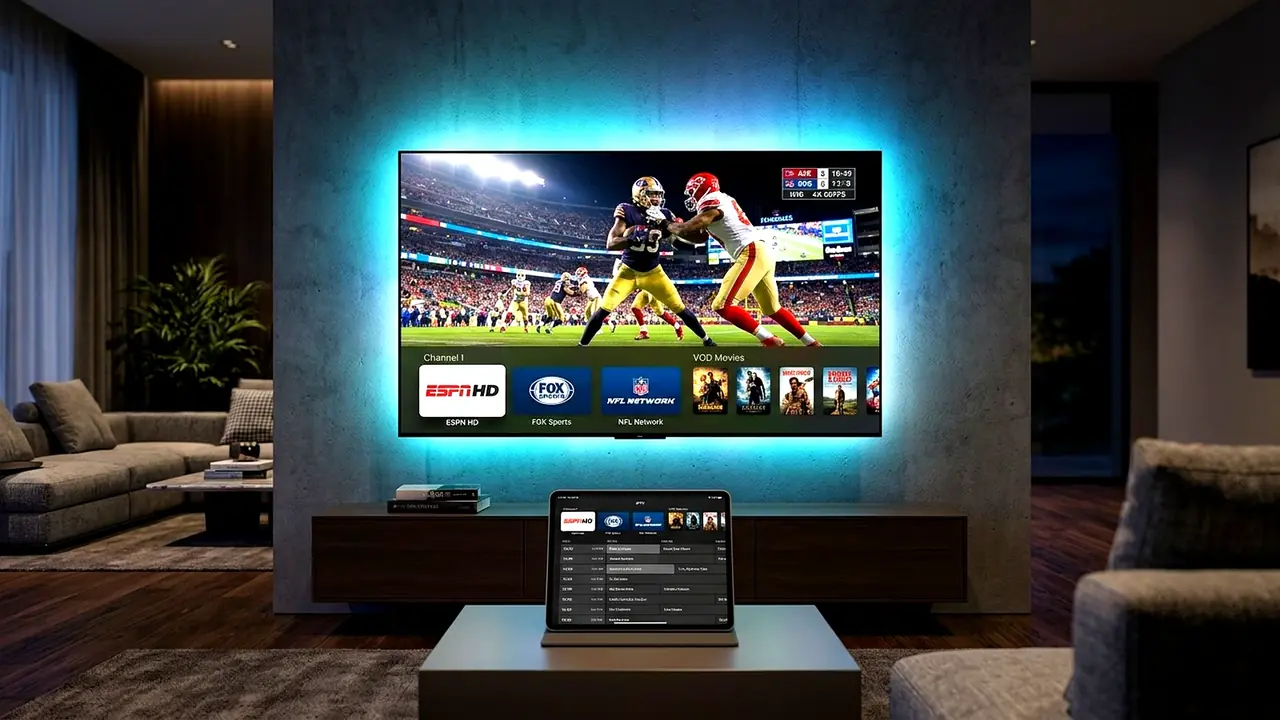
Configuring Optimal Playback Settings in TiviMate
Once you understand how to setup iptv on tivimate, tweaking three key settings ensures the smoothest possible viewing experience on home Wi-Fi networks:
- Buffer Size: Navigate to Settings > Playback and change Buffer Size from Small to Medium or Large. This prevents micro-freezes if your home bandwidth fluctuates temporarily.
- Hardware Decoding: Verify that both Audio Decoder and Video Decoder are set to Hardware. Hardware decoding leverages the FireStick’s GPU for optimal 4K rendering.
- Auto Frame Rate (AFR): Enable AFR to automatically synchronize your television’s refresh rate to the stream’s native 60FPS or 24FPS broadcast.
For users who want to unlock premium features like multi-view and cloud recording, you can manage your license via the official TiviMate Companion on Google Play.
Troubleshooting Common TiviMate Issues
If you encounter an issue after following our guide on how to setup iptv on tivimate, review these quick troubleshooting solutions:
- TV Guide (EPG) Empty: Go to Settings > EPG > EPG Sources, select your playlist, and click Update EPG. A full update takes approximately 45 seconds.
- Error Code 403 or 401: Double-check your username and password for typos, taking careful note of lowercase and uppercase characters.
- Black Screen on 4K Channels: Switch your video decoder in settings from Hardware to Software temporarily to verify video pipeline compatibility.
For more details on top-performing providers, read our full best IPTV service in USA review.
Summary
Now that you know how to setup iptv on tivimate, you have access to thousands of live sports networks and premium movies directly from your remote control. Get started with XIPTV PRO subscription plans today to receive instant credentials and experience premier 4K streaming.